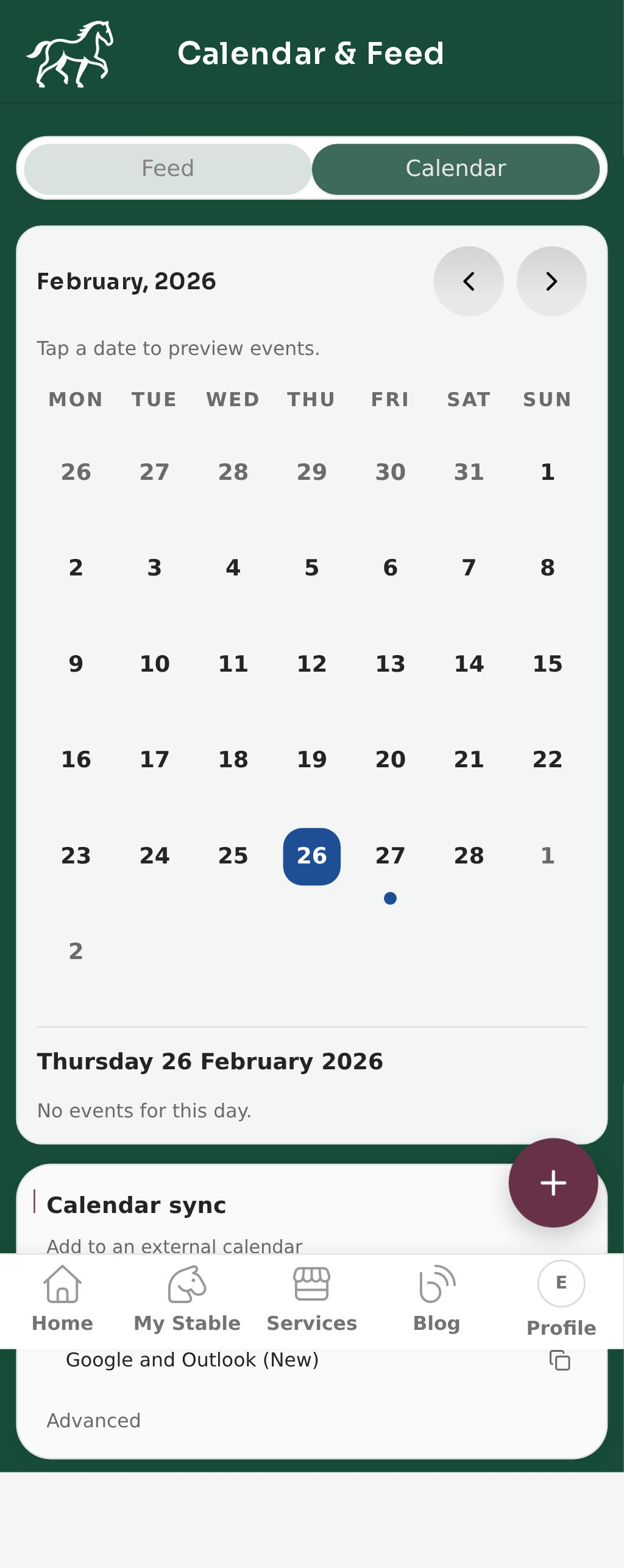
7. Timeline, Recurring Events, and Calendar (Mobile)
Use this workflow to track care history, set recurring schedules, and keep upcoming work visible in Calendar & Feed.
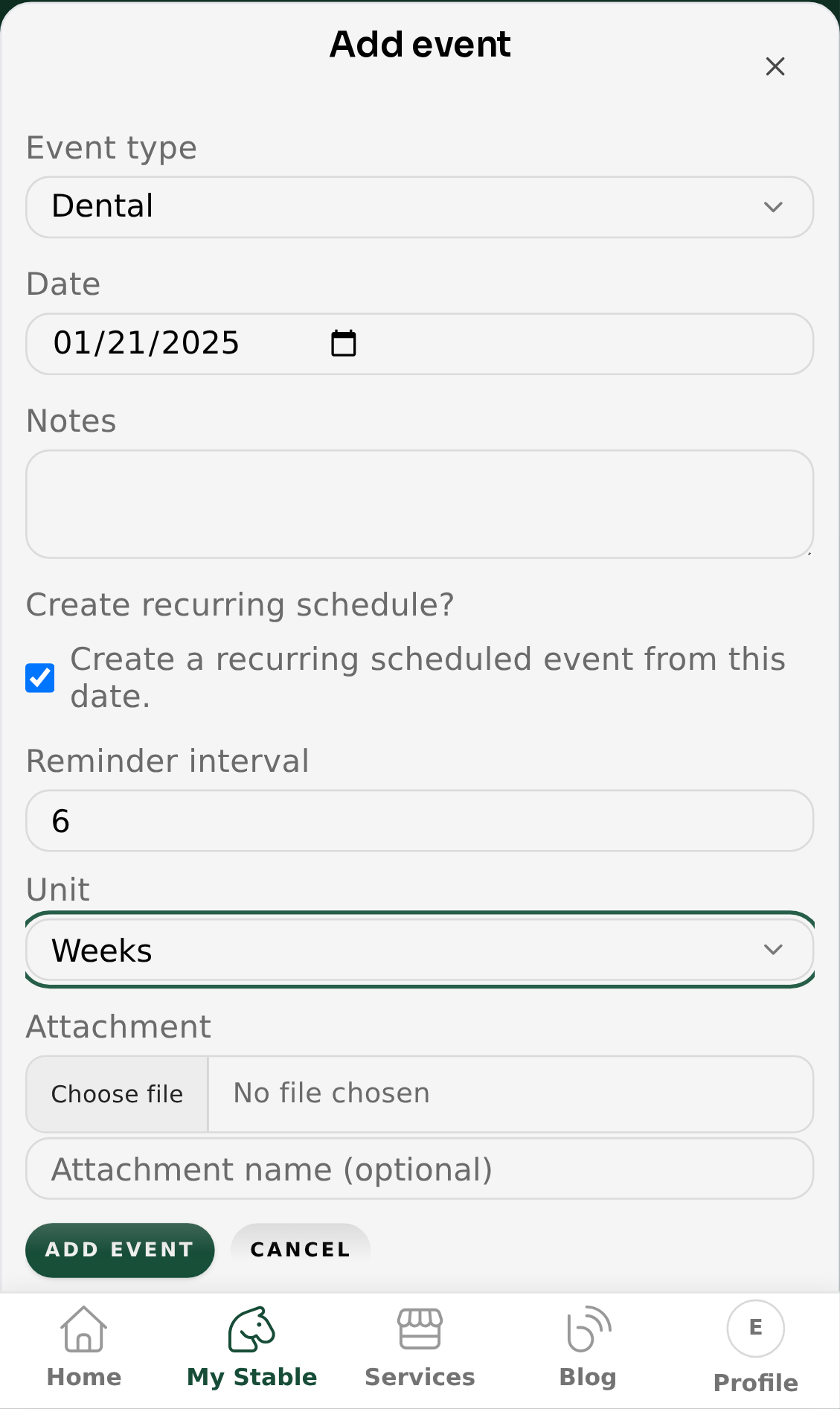
7.1 Add to Timeline with a recurring schedule
- Go to My Stable and open your horse profile.
- Open the Timeline tab.
- Select Add to Timeline (the
+button on mobile). - Choose the Event type and set the Date.
- Turn on Create recurring schedule?.
- Enter a Reminder interval and choose a Unit.
- Select Add event.
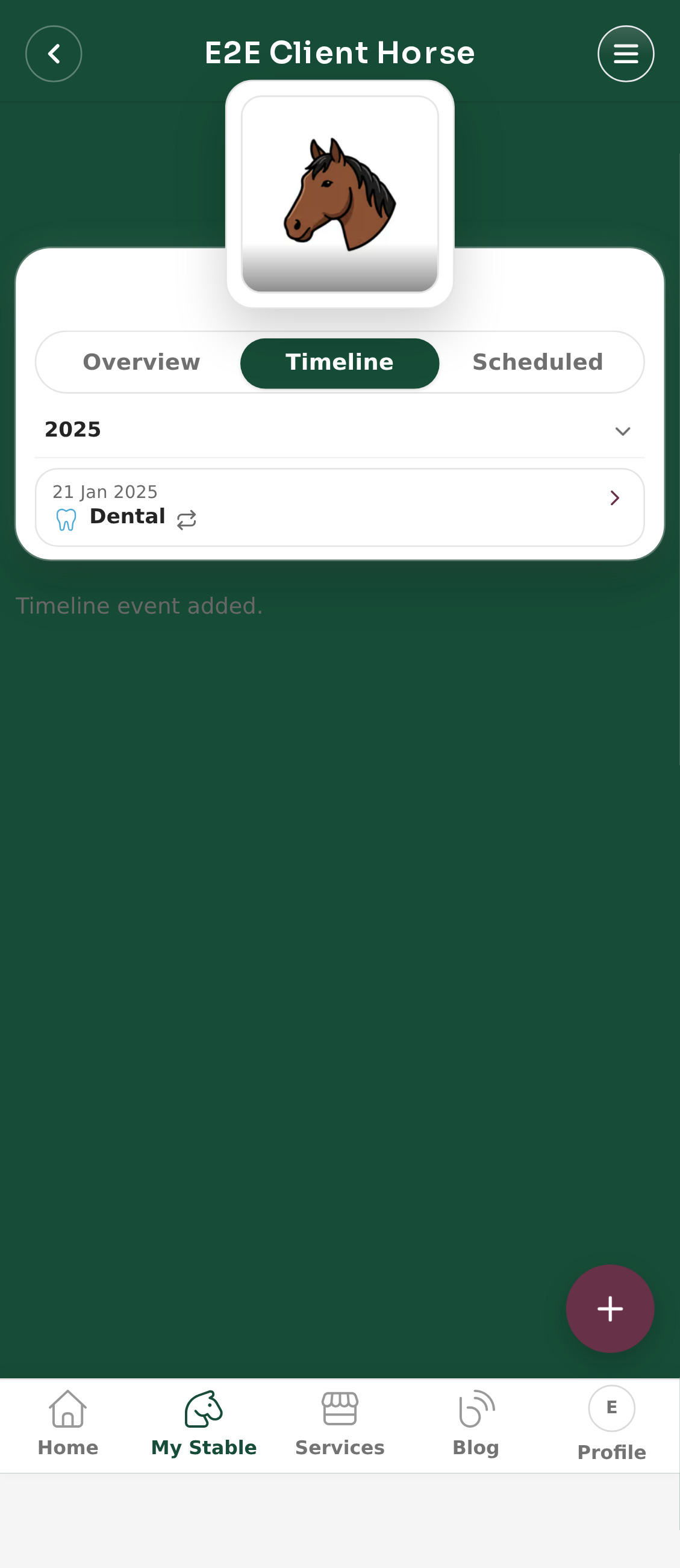
7.2 Confirm the timeline entry
- Stay on the Timeline tab after saving.
- Expand the year group if needed.
- Confirm the event appears in the list.
- Confirm the event shows recurring schedule details.
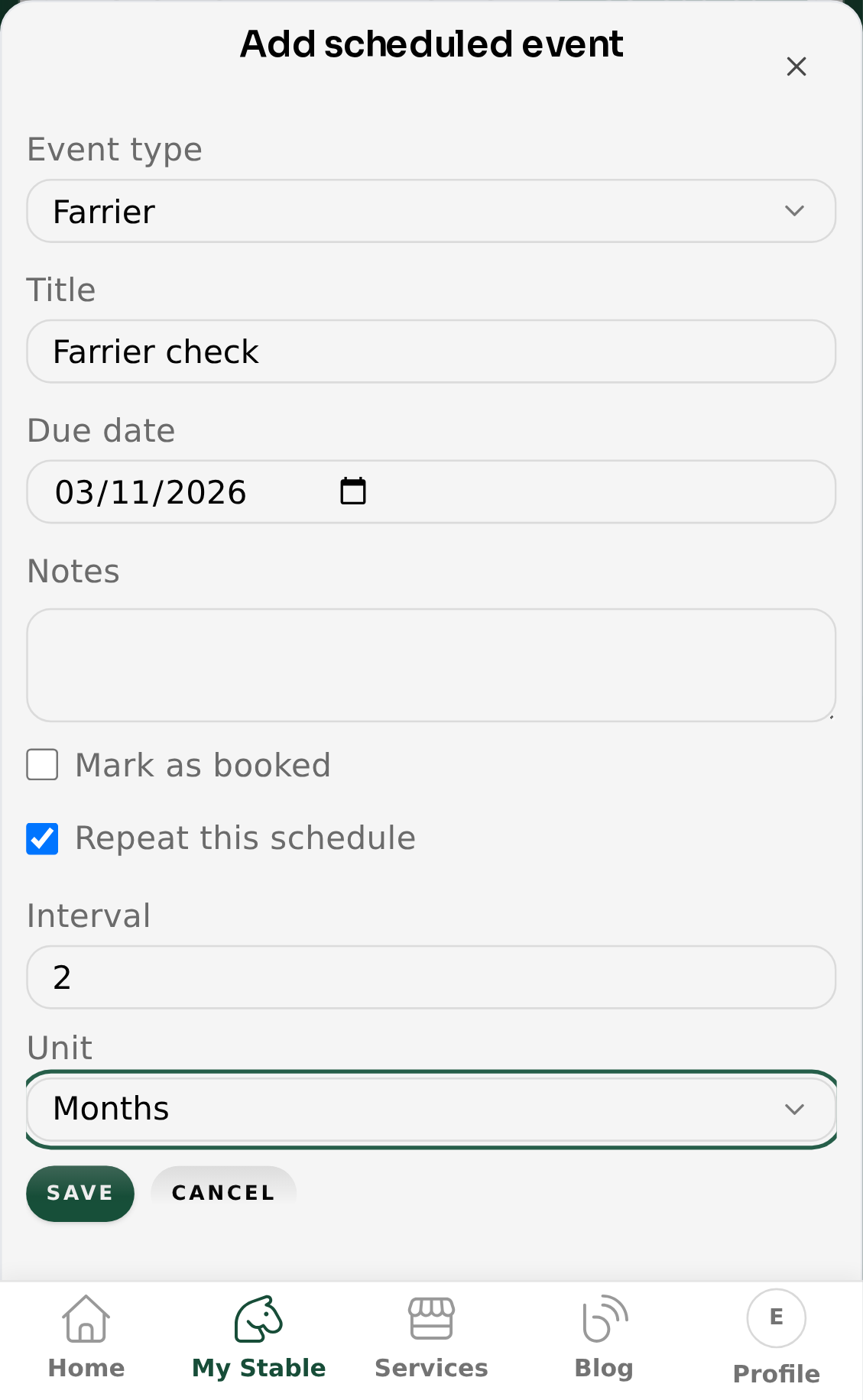
7.3 Add recurring scheduled events directly
Use this when you want to create a scheduled item without first adding a timeline entry.
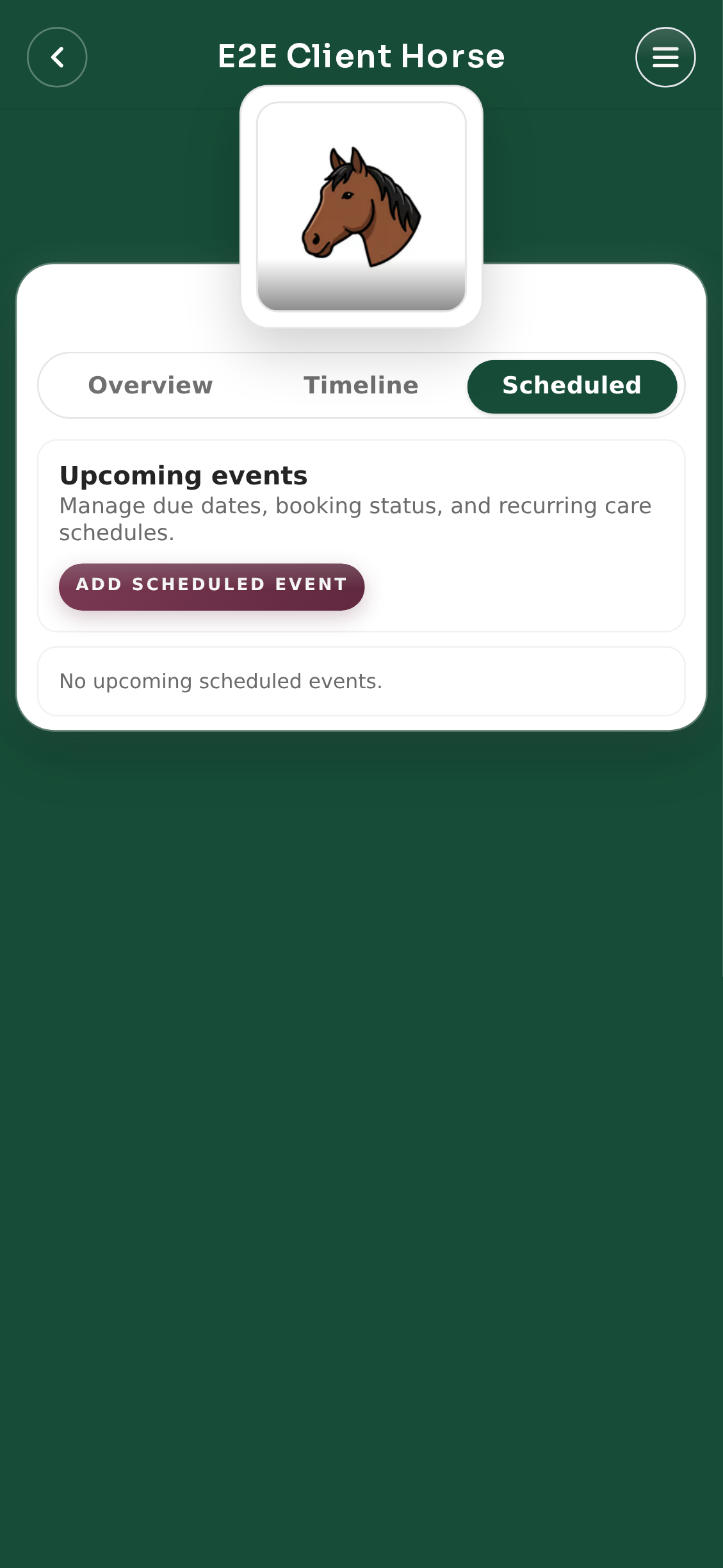
- Open the horse profile Scheduled tab.
- Select Add scheduled event.
- Set Event type, Title, and Due date.
- Turn on Repeat this schedule.
- Set the recurrence Interval and Unit.
- Select Save.
7.4 Manage scheduled status and completion
- Open the horse profile Scheduled tab.
- Use Edit to adjust due dates and set Mark as booked.
- Use Complete when the care item is done.
- Confirm the completed item appears in Timeline.
- For recurring items, confirm the next scheduled item is created automatically.
7.5 Use Calendar & Feed
- Open Calendar from the client portal nav.
- Use Feed for list view and Calendar for date-grid view.
- Use Filter by horse to isolate one horse.
- Scheduled items display as due or booked in the feed.
- Use For Apple and Outlook Classic or Google and Outlook (New) to sync.
- Use Reset link if you need to rotate your sync URL.