2. Dashboard Overview (Mobile)
This guide explains the new mobile dashboard layout and how to use each card.
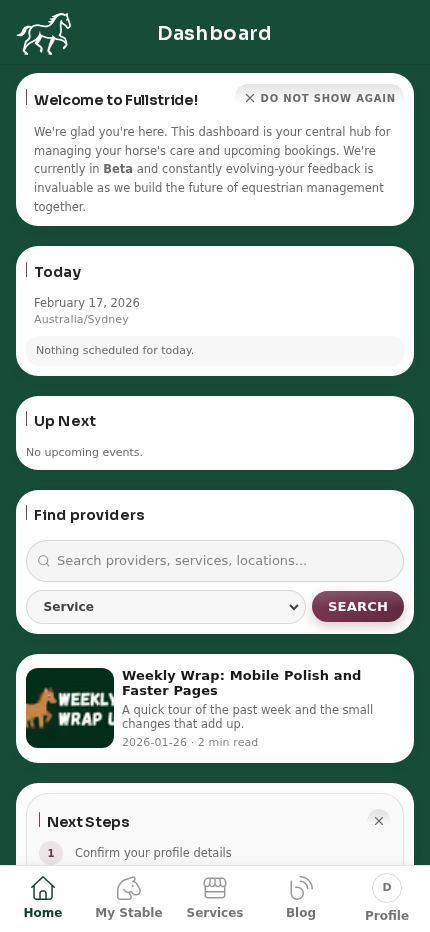
2.1 What appears on the dashboard
- Announcement card (currently “Welcome to Fullstride!”).
- Today card for today’s date and schedule status.
- Up Next card for upcoming events and reminders.
- Find providers search card.
- Latest blog post preview card.
- NextSteps checklist card.
2.2 Announcement card behavior
- The announcement card appears near the top of dashboard when a new announcement is published.
- Select Do not show again to dismiss it.
- It stays hidden until a newer announcement is published.
- When a new announcement is released, it becomes visible again after login.
2.3 Use the Today card
- Open Dashboard.
- Review the full-width date and timezone line.
- Check the status message:
- If nothing is booked, you see Nothing scheduled for today.
- If bookings/reminders exist, they appear in your calendar and Up Next.
2.4 Use the Up Next card
- Open Dashboard.
- Look at Up Next for your next events.
- Each row is formatted for quick scan:
- Horse name
- Event or reminder label
- Date/time pill on the right
- If there is nothing upcoming, you see No upcoming events.
2.5 Find providers from dashboard
- In Find providers, enter a provider, service, or location keyword.
- Optionally choose a Service filter.
- Select Search to open filtered provider results.
2.6 Read the latest blog post
- The dashboard includes a compact latest-post preview.
- Select the preview row to open the full article.
- Use this for release notes, product updates, and horse care content.