1. Create an Account and Log In (Mobile)
This mobile guide covers creating a Fullstride client account, signing in with a magic link or Google, updating your profile, and logging out.
1.1 Create an account with a magic link
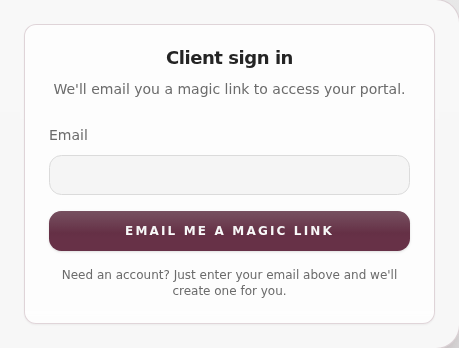
- Open the client sign-in page at https://www.fullstride.app/clients.
- In the Email field, enter the address you want to use for your account.
- Select Email me a magic link.
- Check your email inbox and open the message from Fullstride.
- Select the sign-in link in the email to open the client portal.
- The portal opens your profile page so you can finish setup.
- Complete the required fields (marked with an asterisk) and any optional fields you want to add.
- Select Save changes and wait for the “Profile updated.” confirmation.
1.2 Log in with a magic link
- Open the client sign-in page at https://www.fullstride.app/clients.
- Enter your email address.
- Select Email me a magic link.
- Open the email from Fullstride and select the sign-in link.
- The portal opens to your dashboard or the page you were trying to access.
1.3 Create or log in with Google
- Open the client sign-in page at https://www.fullstride.app/clients.
- Find Continue with Google, select it.
- Choose your Google account and complete the Google consent steps.
- You will return to the Fullstride portal.
- If this is your first time signing in, complete any profile details you are prompted for, then select Save changes.
1.4 Update your profile settings
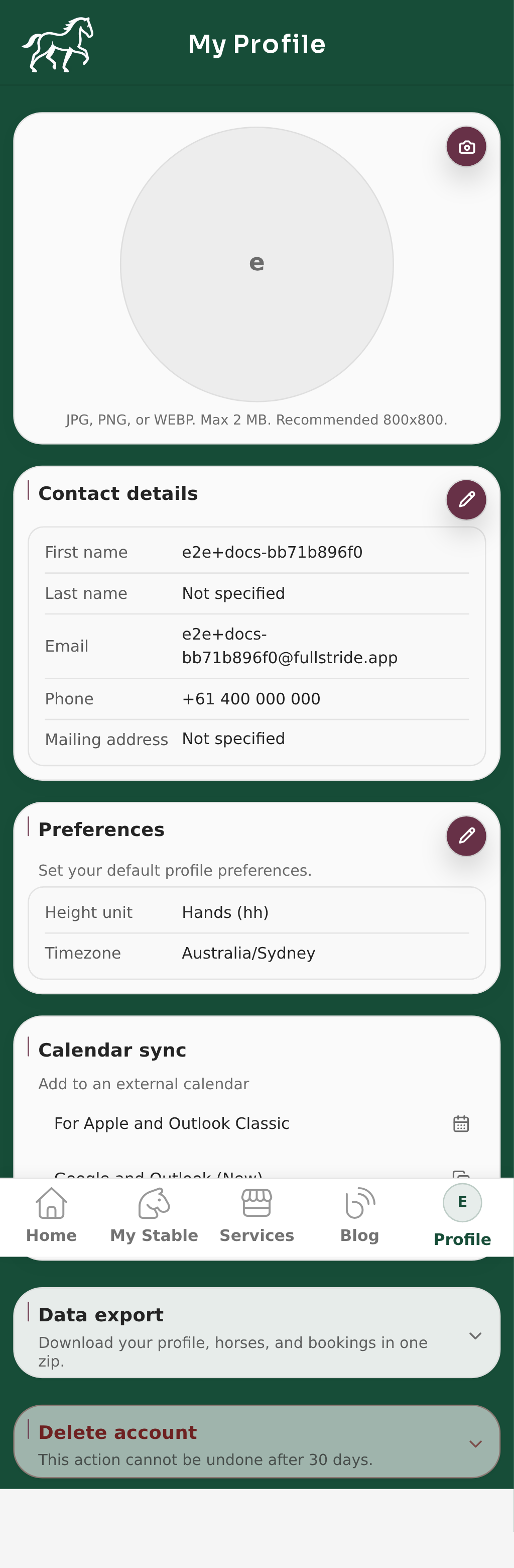
- Open your profile page at
/client-portal/my-profile(or select My Profile from the account menu). - In Contact details, select the edit icon, update your details, then save.
- In Preferences, select the edit icon, update your defaults (for example timezone or units), then save.
- Use the Calendar sync card to:
- Select For Apple and Outlook Classic to open subscription in those apps
- Select Google and Outlook (New) to copy the subscription link
- Reset the sync link from Advanced if needed
- Confirm you see the profile update success message before leaving the page.
1.5 Download your data
- Open your profile page at
/client-portal/my-profile. - Find Download your data.
- Select Download my data.
- Save the zip file. It includes CSV files plus any attachments tied to your account.
1.6 Delete your account
- Open your profile page at
/client-portal/my-profile. - Scroll to Delete your account and read the warning.
- Type
DELETEto confirm. - Select Delete my account.
- Your account is disabled for 30 days. During that time you can restore it from the account disabled screen.
- After 30 days, your account and stored files are permanently deleted.
1.7 Dormant accounts
- If you do not log in for 12 months, we will email you before deleting your account.
- Sign in during the notice period to keep your account active.
1.8 Log out
- Open the My Profile menu in the portal header.
- Select Log out.
- Wait to return to the public Fullstride site.
1.9 Send feedback
- See Send feedback.